In order to keep the overview of all your items, it is advisable to sort and arrange these according to logical criteria. Since the developers of Ingenious.V12 did not want to anticipate by which criteria you sort, Ingenious.V12 conceived it so that everything is in your own hands.
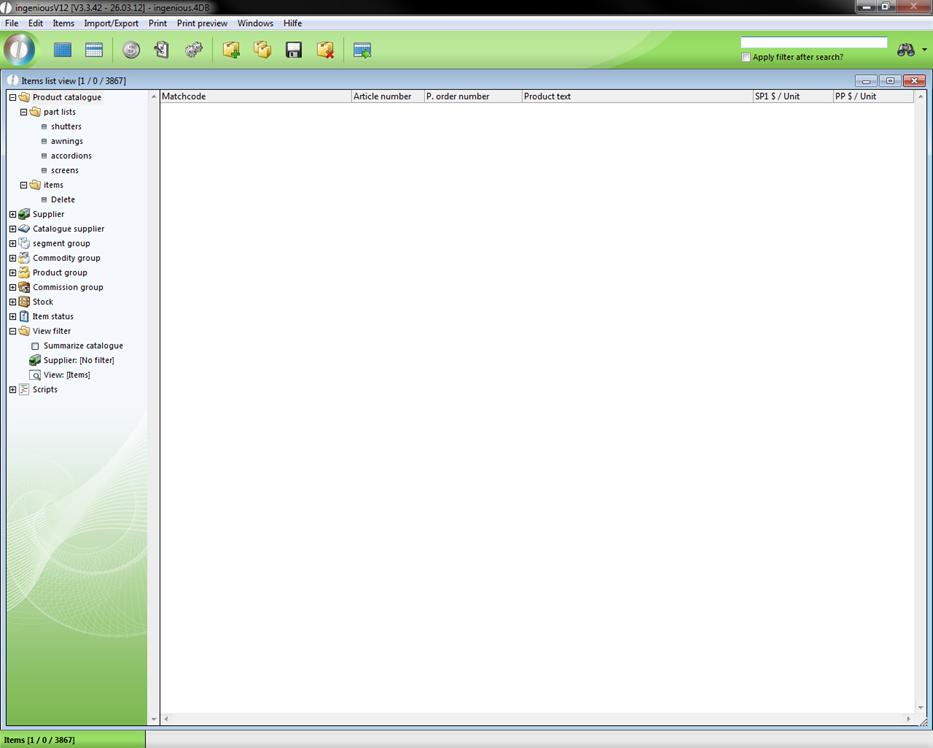
In addition, the product catalogue operates within the structure range of the files. This file is designed to group all of your items according to any criteria. In addition, you can provide as many subfolders as desired. This file structure should be as clear as possible. It is best to give individual files a short and precise name so that questions regarding content are not left open. Consider exactly, according to which criteria the first level is to be sorted. This decision is then the default for the next levels.
Note also that your product catalogue is really efficient only if one path leads to each product.
Practice creating folders
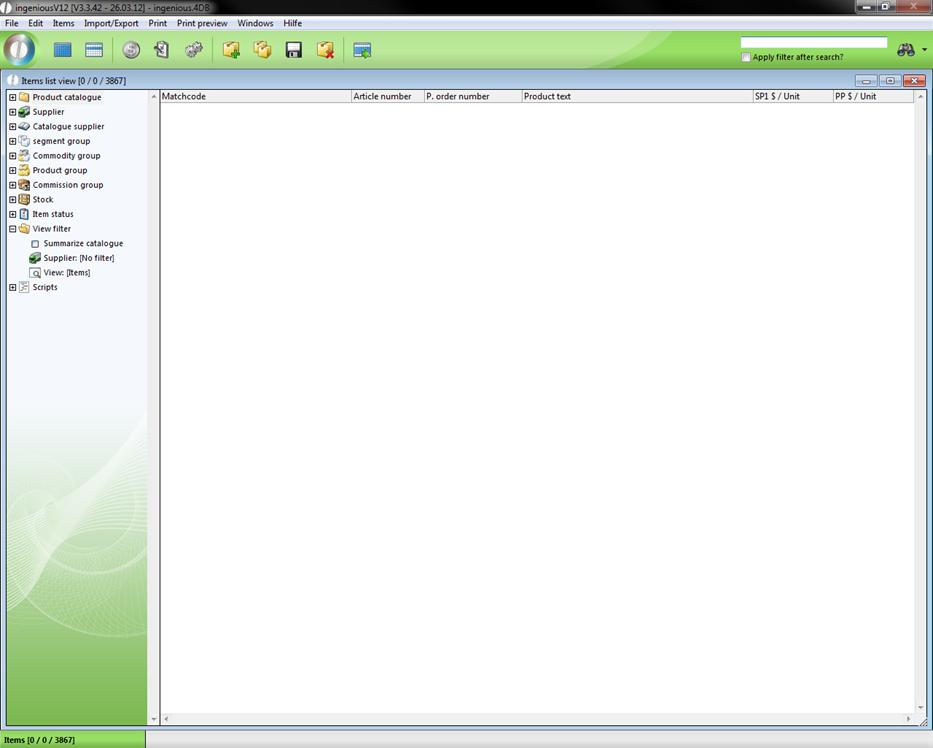
1. Highlight the folder with the “Product catalogue” label.
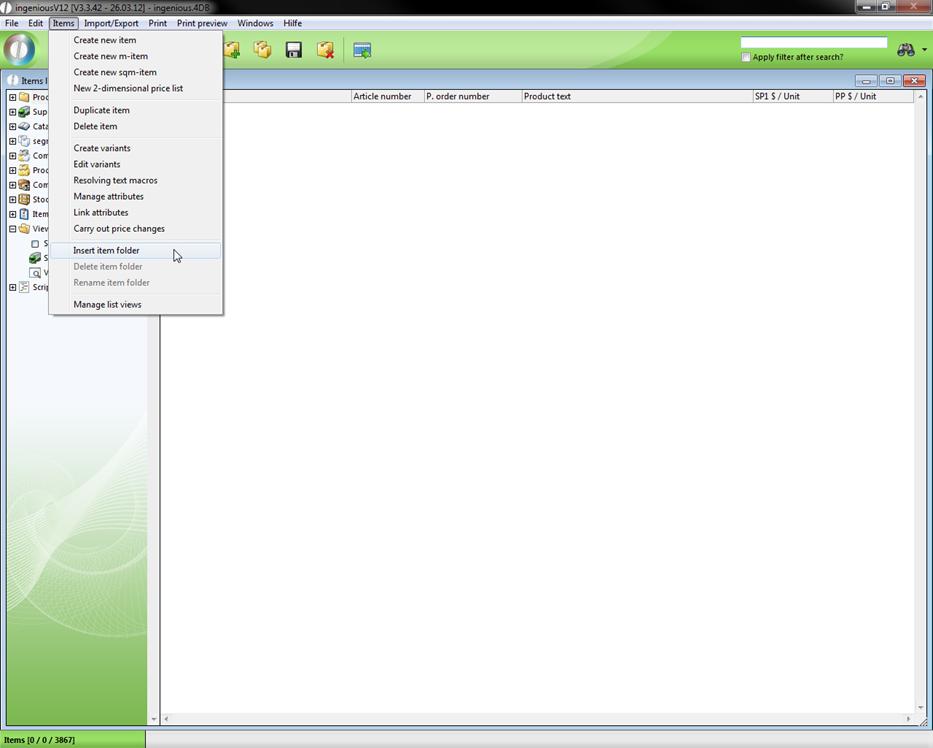
2. In the main menu, select the menu item, “Items/Insert item folder”.
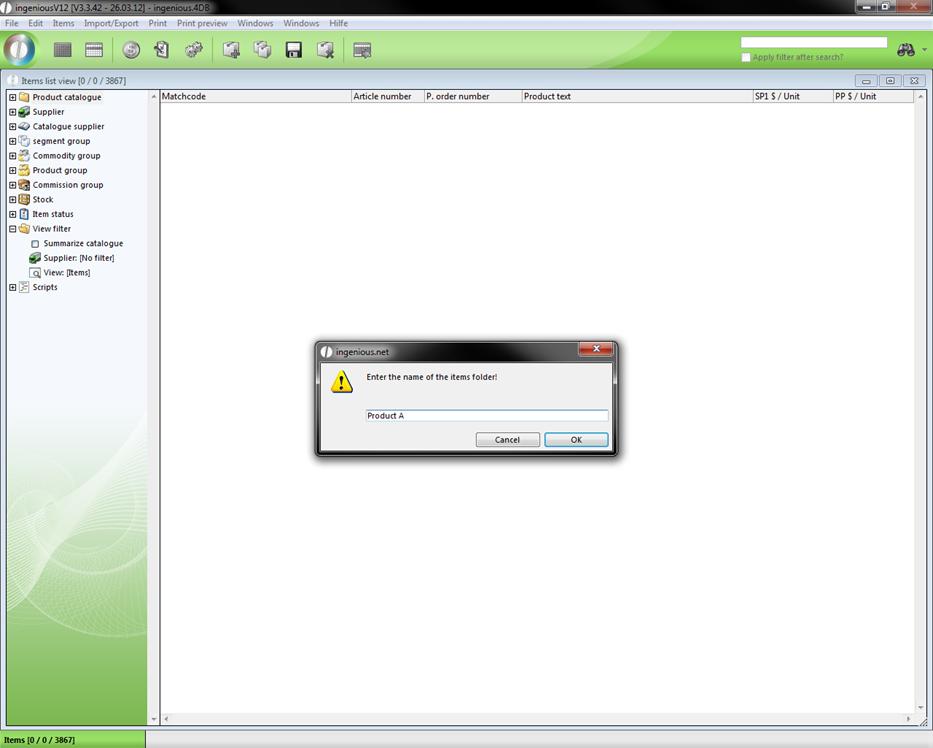
3. A window appears where you can name the list. Here enter “Product A” and confirm with “OK”.
In the product catalogue folder, you will find a new file with the name “Product A”. Because the file still has no contents, it has the article icon  instead of the file icon
  . The icon changes with the first entry in this folder.
4. Highlight the newly-created folder with “Product A”. Select the entry, “Items/Insert item folder” in the main menu. Give the new file the name “Material”.
5. You would now like to create a folder for a second product. To do this, you must mark the item catalogue folder again. This is because the folder that is to be created is always provided in the active (selected) folder.
6. Repeat step 2 - 4. Designate the first folder with “Product B” and the second again with “Material”.
Good luck! You have completed the preconditions for a simple grouping. The product catalogue incidentally sorts the entries alphabetically. This will give you a little more of an overview in your own article catalogue.
7. Repeat steps 1 - 4 again with the values, “Product C” and “Material”.
Now your product catalogue contains the files created by you in addition to those pre-installed by Ingenious.V12:
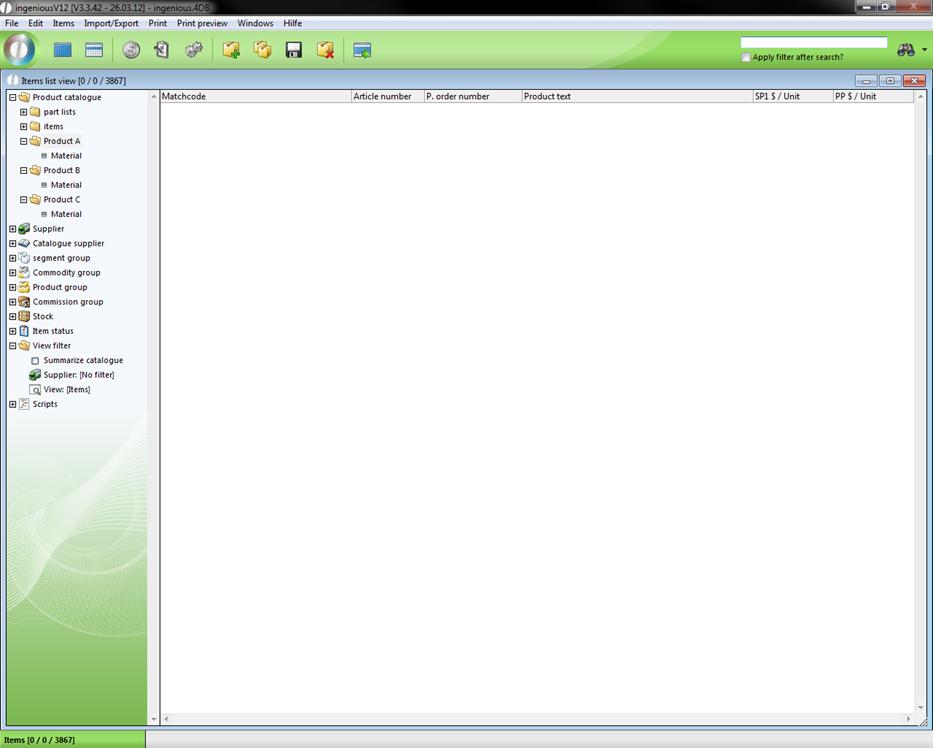
In the next two exercises, you will learn how to create items and place them into the product catalogue.
Practice incorporating a product into the product catalogue
1. Go to the “Product catalogue” folder and click on  “List all items”. Look for the sample record with the product number “6406-HAND-02-AL” in the list view.
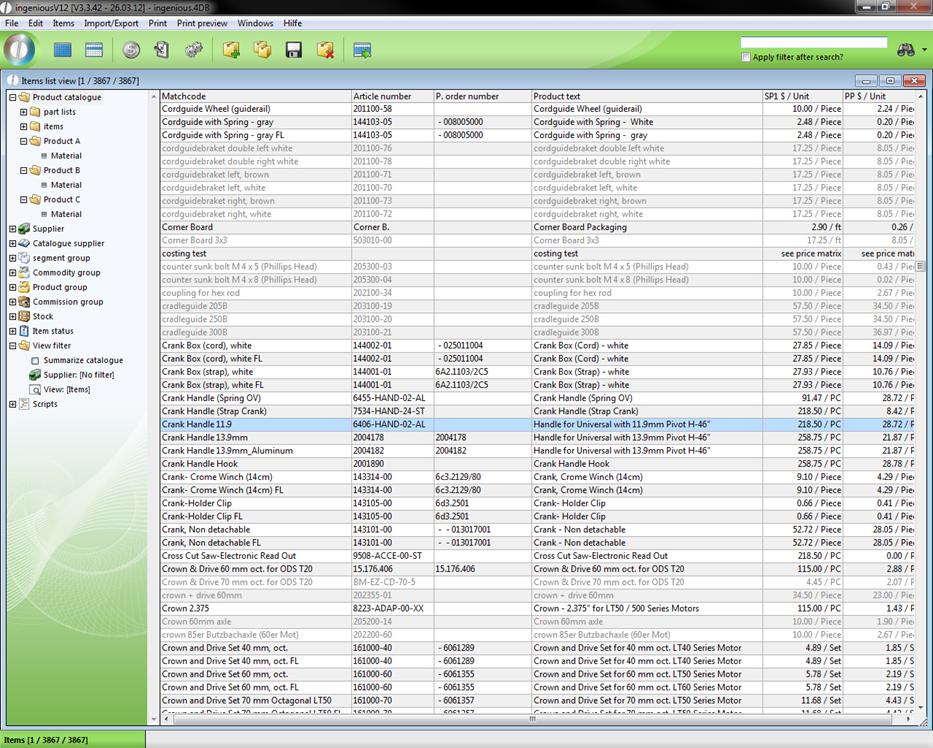
2. Double click on the record in order to open the detail view.
3. Switch to the “Parameter” column.
In the “Classification” area, you will find a pop-up menu with the name “Directory”. In this menu, all files that are in the product catalogue are listed.
4. Select “Product A” from the pop-up menu directory.
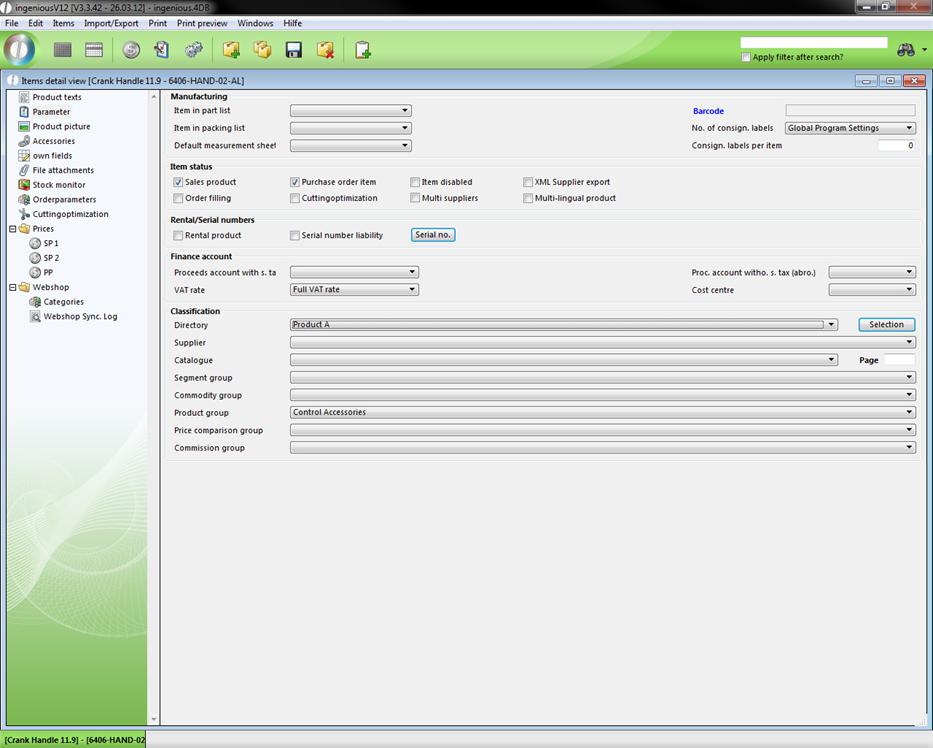
Now leave the item detail view and confirm with “Save now” in the window that appears. You have just incorporated a product into the product catalogue.
5. In order to test the action, simply open the file “Product A” in the product catalogue. There you will find our article with the article number “A50000003”.
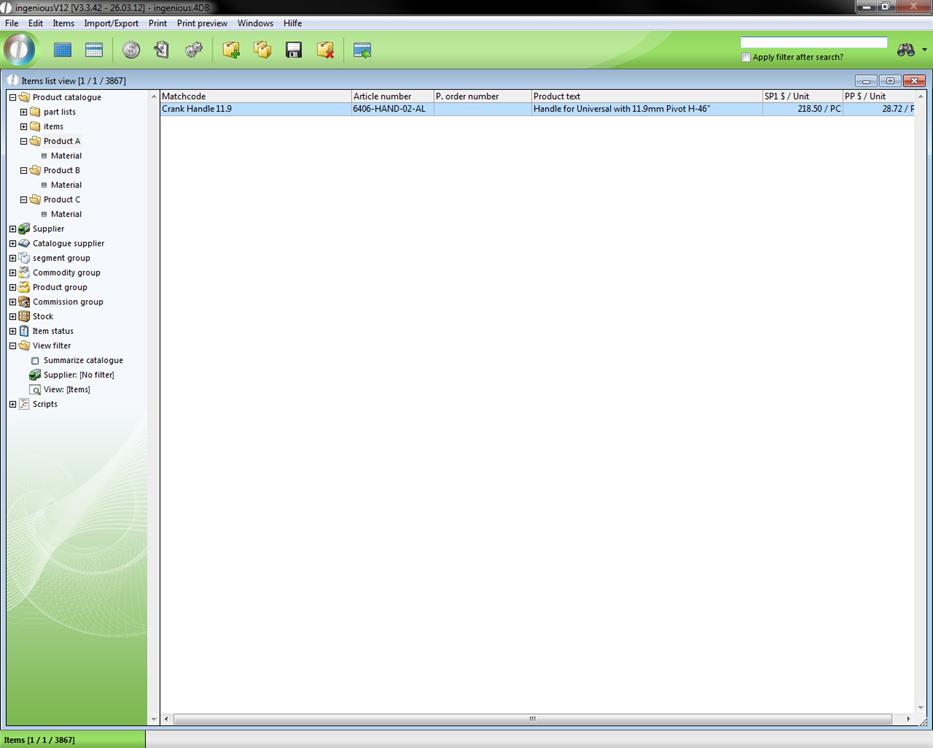
Note: The moving of products to the product catalogue functions analogously. Simply select another folder in the “Folder” popup menu of the article, select another folder and the article is moved.
Practice deleting item folders
1. In the product catalogue, highlight the folder “Product C/Material”.
2. In the main menu, select “Items/Delete item folder”.
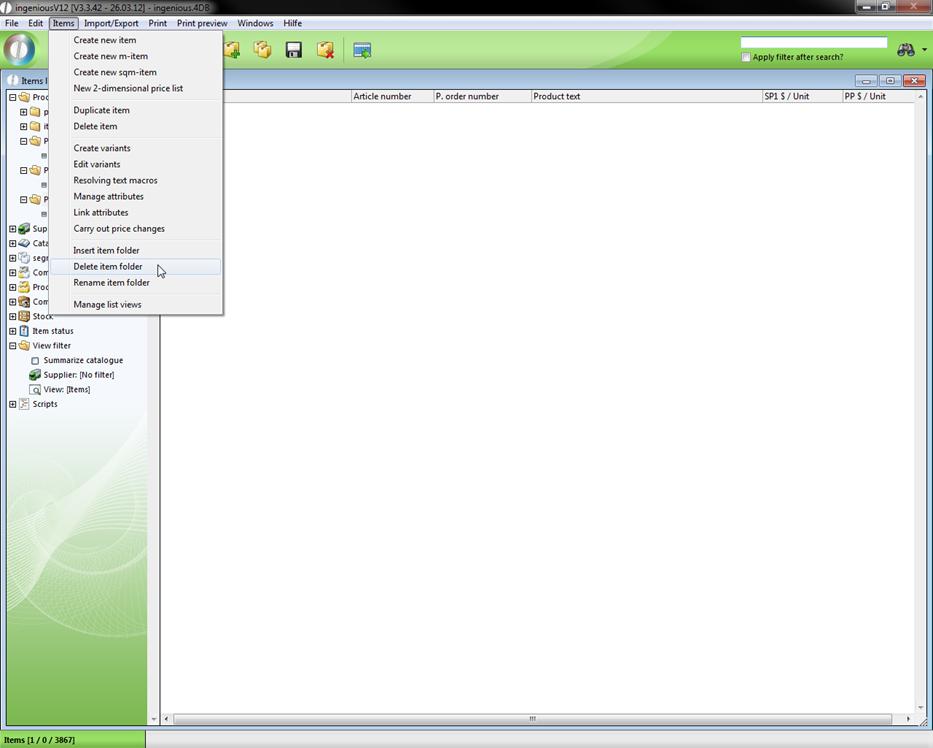
3. An inquiry window appears to ask whether you want to really delete the folder. Confirm with “OK”.
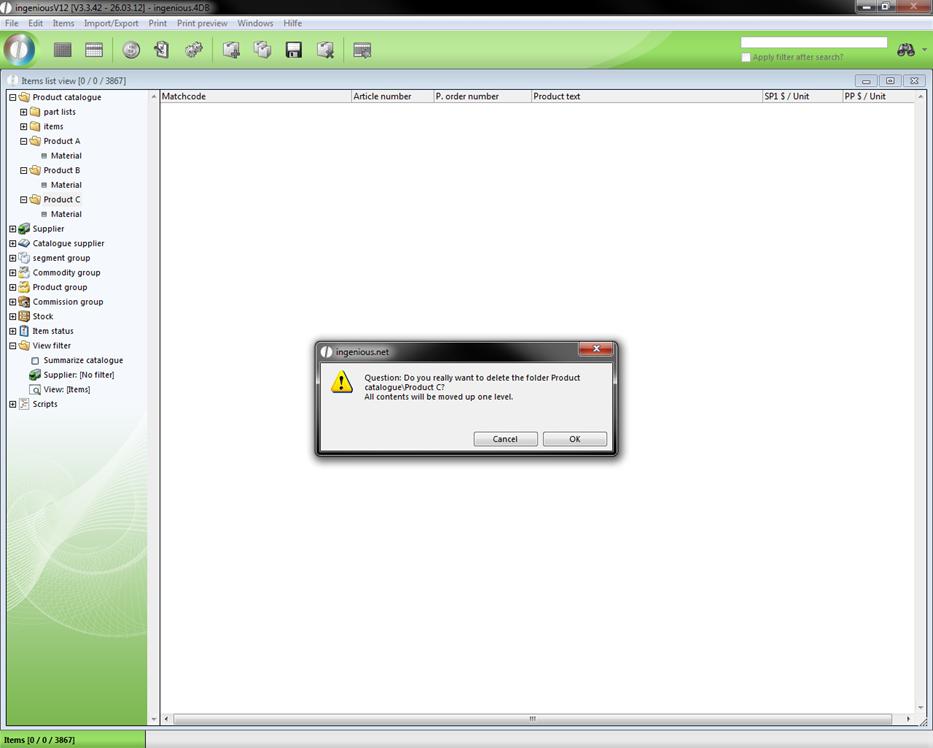
As you can see, the folder was deleted. Of course one can also remove several files at the same time. In addition, one simply selects a file from a higher level. Then the selected folder and the pertinent subfolder are deleted.
4. Mark the folder “Product B” and repeat step 2 and 3.
The folder “Product B” and the folder “Material” contained within are removed.
Presorting
The folders named Supplier, Catalogue supplier, Commodity group, Product group, etc. within the selection area serve as presorting of article records. In the “Supplier” folder, you will find for example, all your common suppliers in your database. If you select a supplier with a mouse-click, a product that you selected automatically appears in the list view. The folders named Commodity group, Product group, Stock, Item status and View filter have different presorting options that function analogously. You can set folder names in the program settings yourself.